Playback starts YouTube’s embedded player (privacy-enhanced mode).
How to Edit Video in Photoshop CS6
ChannelMatthew GoreDescription from the creator
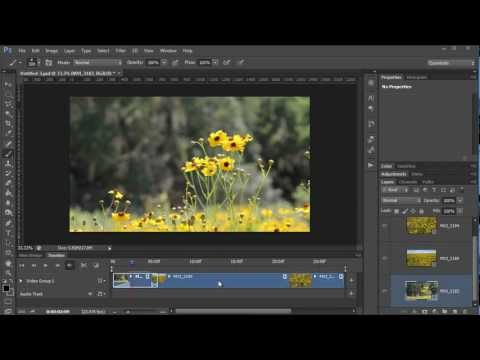
This is a quick demonstration of the new video editor found in Adobe Photoshop CS6. This impressive video editor can handle full HD video, and most of the adjustments and filters that you're used to using for photos can now be applied to videos.
Photoshop CS6 is the first version of the program to offer timeline based video editing rather than just frame-based animation. However, animation is still available, and the combination of still images, animation, and video makes a very powerful video editor.
If your timeline doesn't look like mine, you might be using the "frame animation" timeline instead of the video. If you want to convert from the frame animation timeline to the video editing timeline, click the icon that the arrow is pointing to in this image:
lightandmatter.org/images/editor-convert.jpg
If you have the Video timeline up but still don't see the "Add Media" icon in your timeline, then you are probably using a bad install of Photoshop. Re-installing usually solves the problem, but sometimes it's necessary to remove older versions of Photoshop. If that doesn't work, it's a software problem; contact Adobe support.
DYNAMICLINK NOT AVAILABLE
Generally this error can be solved by closing down any other Adobe media programs that might be open and using this resource. A reboot will probably solve it, but not always. If shutting down other programs and a reboot don't fix the issue, try this thread at the Adobe Forums: forums.adobe.com/message/6064839
SAVING / EXPORTING
When you're finished with your video project (or even if you're not) and you want to save it as a photoshop project that you can keep working on later, you simply use the "Save" or "Save As" option in the file menu. However...
When you're ready to create the actual video for viewing or uploading to YouTube, etc, look under the File menu choose "Export", and under Export, choose "Render Video". Depending on what version of photoshop you have and what video codecs you have on your computer, you may see some different options here, but any of them will produce a video of some kind :)
For more information, visit us at lightandmatter.org/2012/photoshop-tutorials/edi…
Photoshop CS6 is the first version of the program to offer timeline based video editing rather than just frame-based animation. However, animation is still available, and the combination of still images, animation, and video makes a very powerful video editor.
If your timeline doesn't look like mine, you might be using the "frame animation" timeline instead of the video. If you want to convert from the frame animation timeline to the video editing timeline, click the icon that the arrow is pointing to in this image:
lightandmatter.org/images/editor-convert.jpg
If you have the Video timeline up but still don't see the "Add Media" icon in your timeline, then you are probably using a bad install of Photoshop. Re-installing usually solves the problem, but sometimes it's necessary to remove older versions of Photoshop. If that doesn't work, it's a software problem; contact Adobe support.
DYNAMICLINK NOT AVAILABLE
Generally this error can be solved by closing down any other Adobe media programs that might be open and using this resource. A reboot will probably solve it, but not always. If shutting down other programs and a reboot don't fix the issue, try this thread at the Adobe Forums: forums.adobe.com/message/6064839
SAVING / EXPORTING
When you're finished with your video project (or even if you're not) and you want to save it as a photoshop project that you can keep working on later, you simply use the "Save" or "Save As" option in the file menu. However...
When you're ready to create the actual video for viewing or uploading to YouTube, etc, look under the File menu choose "Export", and under Export, choose "Render Video". Depending on what version of photoshop you have and what video codecs you have on your computer, you may see some different options here, but any of them will produce a video of some kind :)
For more information, visit us at lightandmatter.org/2012/photoshop-tutorials/edi…
About this tutorial
Matthew Gore published this 10:43 video tutorial on November 5, 2012. It has been watched 1,032,578 times on YouTube.
- Channel
- Matthew Gore
- Category
- Education
- Duration
- 10:43
- Published
- November 5, 2012
- Views
- 1,032,578
- Likes
- 6,418
Tags
Share
This tutorial in other languages
- FRComment faire pour modifier la vidéo dans Photoshop CS6
- ESCómo Editar vídeo en Photoshop CS6
- PTComo Editar vídeo no Photoshop CS6
- ITCome Modifica video in Photoshop CS6
- DEWie zu bearbeiten Video in Photoshop CS6
- NLHoe om video te bewerken in Photoshop CS6
- RUКак редактировать видео в Photoshop CS6
- PLJak edytować wideo w programie Photoshop CS6
- JAどのようにPhotoshopのCS6で編集動画へ
- ARكيفية تحرير الفيديو في فوتوشوب CS6
- HIकैसे फ़ोटोशॉप CS6 में संपादित वीडियो को
- IDCara Edit Video di Photoshop CS6