Playback starts YouTube’s embedded player (privacy-enhanced mode).
Gimp tutorial - How to combine / blend two pictures together
ChannelTutorials4viewDescription from the creator
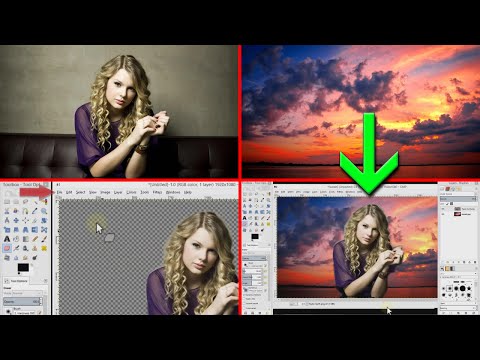
In this tutorial we will show you how to put and combine to pictures together (blend) in order to make one picture in the background and the other in the foreground by using transparency.
How it is done:
1: You need 2 pictures to work with 1 background and 1 objective
2: Press: File - Open, and import your objective pic
3: Layer - Transparency - Add Alpha Channel
4: Select the Eraser tool
5: Lower it's spacing to about 2
6: And delete all the objective's background
7: Go to: File - Export As...
8: Change the extension to .png
9: And select PNG format (for transparency)
10: File - Close all - Discard
11: File - Open as Layers...
12: Select your background image
13: File - Open as Layers...
14: Select the PNG you saved earlier.
More of our videos:
youtube.com/user/ShaiSoft/videos
Like us on Facebook:
facebook.com/groups/363968490310325
How it is done:
1: You need 2 pictures to work with 1 background and 1 objective
2: Press: File - Open, and import your objective pic
3: Layer - Transparency - Add Alpha Channel
4: Select the Eraser tool
5: Lower it's spacing to about 2
6: And delete all the objective's background
7: Go to: File - Export As...
8: Change the extension to .png
9: And select PNG format (for transparency)
10: File - Close all - Discard
11: File - Open as Layers...
12: Select your background image
13: File - Open as Layers...
14: Select the PNG you saved earlier.
More of our videos:
youtube.com/user/ShaiSoft/videos
Like us on Facebook:
facebook.com/groups/363968490310325
About this tutorial
Tutorials4view published this 2:37 video tutorial on November 6, 2015. It has been watched 674,432 times on YouTube.
- Channel
- Tutorials4view
- Category
- Howto & Style
- Duration
- 2:37
- Published
- November 6, 2015
- Views
- 674,432
- Likes
- 4,606
Tags
Share
This tutorial in other languages
- FRtutoriel gimp - Comment combiner / fusionner deux images ensemble
- ESGimp Tutorial - ¿Cómo combinar / mezclar dos imágenes juntas
- PTGimp tutorial - Como combinar / misturar duas fotos juntos
- ITGimp Tutorial - Come combinare / fondere due foto insieme
- DEGimp Tutorial - Wie kombinieren / Blend zwei Bilder zusammen
- NLGimp Tutorial - Hoe om te combineren / mengen van twee opnamen
- RUGimp учебник - Как совместить / смешать две фотографии вместе
- PLTutorial GIMP - Jak połączyć / połączyć ze sobą dwa obrazy
- JAGimpのチュートリアル - どのように組み合わせるか/ 2つの画像をブレンド
- ARالأعرج البرنامج التعليمي - كيفية الجمع بين / مزج صورتين معا
- HIजिम्प ट्यूटोरियल - गठबंधन करने के लिए कैसे / दो तस्वीरें एक साथ मिश्रण
- IDGimp tutorial - Bagaimana untuk menggabungkan / berbaur dua gambar bersama-sama