Playback starts YouTube’s embedded player (privacy-enhanced mode).
How to Match Colors Automatically in Photoshop
ChannelPHLEARNChapters
Description from the creator
▶ Download the 2 sample images and PDF guide for this tutorial (free with a PHLEARN account): phlearn.com/tutorial/match-colors-automatic/
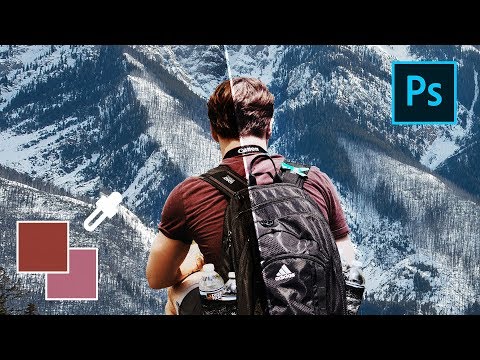
Learn how to automatically match colors in a Photoshop composite, so your subject and background feel like the same photo.
Compositing a subject onto a new background almost always leaves a color mismatch behind. This tutorial uses Photoshop's Match Color command to pull the background's colors onto the subject automatically, then fine-tunes the result so it stays realistic.
CHAPTERS
00:00 Why composite colors need to match
00:00:44 Compositing the subject onto a new background
00:01:59 Duplicating the layer to keep a backup
00:02:15 Applying Match Color from another document
00:03:02 Adjusting luminance, intensity, fade, and neutralize
THE STEPS
1. Duplicate your subject layer first, since Match Color is a destructive edit
2. Go to Image, then Adjustments, then Match Color
3. Choose your background document and layer as the source
4. Adjust Luminance and Color Intensity to taste
5. Use Neutralize to calm down an overly strong color shift
6. Use Fade to dial back the overall effect until it looks natural
Read PHLEARN's full guide and download the sample images used in this tutorial here: phlearn.com/tutorial/match-colors-automatic/
Go deeper with the PHLEARN PRO course “How to Remove Backgrounds in Photoshop”: phlearn.com/tutorial/change-remove-backgrounds/
―
PHLEARN PRO: every PRO tutorial, one membership
◦ 200+ in-depth courses and masterclasses on Photoshop, Lightroom and photography
◦ 1,000+ downloadable PSDs, RAW images and sample files to follow along
◦ Presets, Photoshop actions and LUTs included
◦ New PRO tutorials every month, streamed in 4K with captions and chapters
◦ Rated 4.93/5 by 3,900+ students
◦ Cancel anytime, 100% money-back guarantee
▶ phlearn.com/pro
―
Follow PHLEARN:
Instagram: instagram.com/phlearn/
Facebook: facebook.com/PHLEARN/
Twitter: twitter.com/PHLEARN
#Photoshop #Compositing #PhotoshopTips
Learn how to automatically match colors in a Photoshop composite, so your subject and background feel like the same photo.
Compositing a subject onto a new background almost always leaves a color mismatch behind. This tutorial uses Photoshop's Match Color command to pull the background's colors onto the subject automatically, then fine-tunes the result so it stays realistic.
CHAPTERS
00:00 Why composite colors need to match
00:00:44 Compositing the subject onto a new background
00:01:59 Duplicating the layer to keep a backup
00:02:15 Applying Match Color from another document
00:03:02 Adjusting luminance, intensity, fade, and neutralize
THE STEPS
1. Duplicate your subject layer first, since Match Color is a destructive edit
2. Go to Image, then Adjustments, then Match Color
3. Choose your background document and layer as the source
4. Adjust Luminance and Color Intensity to taste
5. Use Neutralize to calm down an overly strong color shift
6. Use Fade to dial back the overall effect until it looks natural
Read PHLEARN's full guide and download the sample images used in this tutorial here: phlearn.com/tutorial/match-colors-automatic/
Go deeper with the PHLEARN PRO course “How to Remove Backgrounds in Photoshop”: phlearn.com/tutorial/change-remove-backgrounds/
―
PHLEARN PRO: every PRO tutorial, one membership
◦ 200+ in-depth courses and masterclasses on Photoshop, Lightroom and photography
◦ 1,000+ downloadable PSDs, RAW images and sample files to follow along
◦ Presets, Photoshop actions and LUTs included
◦ New PRO tutorials every month, streamed in 4K with captions and chapters
◦ Rated 4.93/5 by 3,900+ students
◦ Cancel anytime, 100% money-back guarantee
▶ phlearn.com/pro
―
Follow PHLEARN:
Instagram: instagram.com/phlearn/
Facebook: facebook.com/PHLEARN/
Twitter: twitter.com/PHLEARN
#Photoshop #Compositing #PhotoshopTips
About this tutorial
PHLEARN published this 5:45 video tutorial on November 6, 2018. It has been watched 378,554 times on YouTube.
Share
This tutorial in other languages
- FRComment faire correspondre automatiquement les couleurs dans Photoshop
- ESCómo hacer coincidir los colores automáticamente en Photoshop
- PTComo combinar as cores automaticamente no Photoshop
- ITCome abbinare i colori automaticamente in Photoshop
- DEWie Match Farben automatisch in Photoshop
- NLHoe te match kleuren automatisch in Photoshop
- RUКак подобрать цвета Автоматически в Photoshop
- PLJak dopasować kolory Automatycznie w Photoshopie
- JAPhotoshopで自動的に色と一致する方法
- ARكيفية تطابق الألوان تلقائيا في برنامج فوتوشوب
- HIPhotoshop में स्वचालित रूप से रंग मैच के लिए
- IDBagaimana untuk Match Colors otomatis di Photoshop