Playback starts YouTube’s embedded player (privacy-enhanced mode).
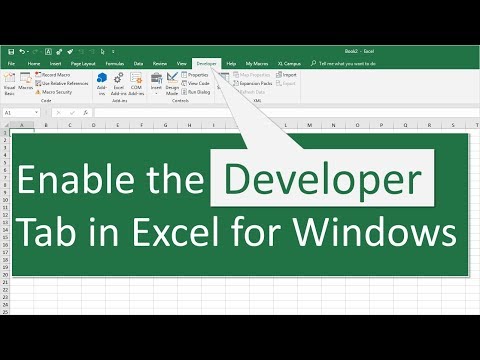
How to Enable the Developer Tab in Excel for Windows
ChannelExcel Campus - JonChapters
Description from the creator
Sign up for our Excel webinar, times added weekly: excelcampus.com/blueprint-registration/
In this video I explain how to enable the Developer tab in Excel for Windows.
The Developer tab in the Excel Ribbon contains buttons for Macros & VBA. This includes buttons to open:
- The Visual Basic Editor (Alt+F11)
- The Macros Window (Alt+F8)
- The Macro Recorder (Alt,L,R)
- Macro Security
- Add-ins Menus
- Insert Form and ActiveX Worksheet Controls
The Developer tab is used frequently when creating & modifying VBA macros, and when adding interactive controls to the spreadsheet.
The Developer tab can be enabled in the Excel Options window. The easiest way to open Excel Options is to:
1. Right-click any ribbon tab and select "Customize the Ribbon..."
2. The Excel Options menu will open and the Customize Ribbon tab will automatically be selected in the left-side bar.
3. Click the Developer checkbox on the right listbox where all Ribbon Tabs are listed.
4. Press the OK button.
The Developer tab will be enabled and appear in the ribbon every time you open Excel. You only have to enable the Developer tab once time.
00:00 Introduction
00:11 How to Enable the Developer Tab in Excel for Windows
00:43 Enable the developer tab
01:25 Outro
In this video I explain how to enable the Developer tab in Excel for Windows.
The Developer tab in the Excel Ribbon contains buttons for Macros & VBA. This includes buttons to open:
- The Visual Basic Editor (Alt+F11)
- The Macros Window (Alt+F8)
- The Macro Recorder (Alt,L,R)
- Macro Security
- Add-ins Menus
- Insert Form and ActiveX Worksheet Controls
The Developer tab is used frequently when creating & modifying VBA macros, and when adding interactive controls to the spreadsheet.
The Developer tab can be enabled in the Excel Options window. The easiest way to open Excel Options is to:
1. Right-click any ribbon tab and select "Customize the Ribbon..."
2. The Excel Options menu will open and the Customize Ribbon tab will automatically be selected in the left-side bar.
3. Click the Developer checkbox on the right listbox where all Ribbon Tabs are listed.
4. Press the OK button.
The Developer tab will be enabled and appear in the ribbon every time you open Excel. You only have to enable the Developer tab once time.
00:00 Introduction
00:11 How to Enable the Developer Tab in Excel for Windows
00:43 Enable the developer tab
01:25 Outro
About this tutorial
Excel Campus - Jon published this 1:54 video tutorial on October 29, 2018. It has been watched 632,741 times on YouTube.
- Channel
- Excel Campus - Jon
- Category
- Education
- Duration
- 1:54
- Published
- October 29, 2018
- Views
- 632,741
- Likes
- 4,691
Tags
Share
This tutorial in other languages
- FRComment activer le onglet Développeur dans Excel pour Windows
- ESCómo habilitar la ficha Programador en Excel para Windows
- PTComo ativar o desenvolvedor Tab no Excel para Windows
- ITCome abilitare il Developer Tab in Excel per Windows
- DEWie der Registerkarte Entwickler in Excel für Windows aktivieren
- NLHoe de Developer Tab in Excel voor Windows inschakelen
- RUКак включить Developer Tab в Excel для Windows,
- PLJak włączyć Developer Tab w programie Excel dla Windows
- JAWindows用のExcelで[開発]タブを有効にする方法
- ARكيفية تمكين علامة تبويب المطور في Excel ل Windows
- HIकैसे Windows के लिए Excel में डेवलपर टैब सक्षम करना
- IDCara Aktifkan Developer Tab di Excel untuk Windows