Playback starts YouTube’s embedded player (privacy-enhanced mode).
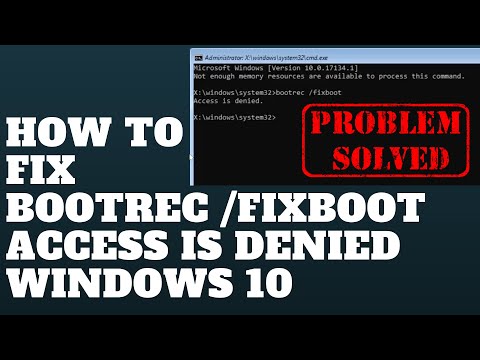
How to Fix Bootrec /Fixboot Access is Denied Windows 10
ChannelBritec09Description from the creator
How to Fix Bootrec /Fixboot Access is Denied Windows 10
►►►SUBSCRIBE for more: youtube.com/user/Britec09?sub_confirmation=1
Step 1. Boot to your Windows 10 CD or USB. when you get to the install windows screen, click the Repair your computer instead of Install now.
Step 2. Select Troubleshoot and then Advanced Options.
Step 3. Select Command Prompt.
Step 4. Type diskpart and press Enter key.
Step 5. Type list disk and press Enter. Now check disk number to identify boot disk, this is usually Disk 0. if not, use the correct boot disk number.
Step 6. Type select disk 0 (or your boot disk number) and press Enter.
Step 7. Type list volume and press Enter. Now look for the volume number of EFI partition.
Step 8. Type select volume 1 and press Enter. (Change volume to your number)
Step 9. Type assign letter=V: and press Enter. V: can be replaced by any drive letter that is not in use by any partition.
Step 10. Type exit and press Enter.
Step 11. Now type V: (or the drive letter you just assigned) and hit Enter.
Step 12. Type md \efi\microsoft\boot\ and hit Enter.
Step 13. Type cd /d V:\efi\microsoft\boot\ and hit Enter.
Step 14. Now type bootrec /fixboot command, the problem should be solved now.
Step 15. bcdboot c:\windows /l en-us /s V: /f all
——————— My Social Links:
🔵 View My Channel - youtube.com/Britec09
🔵 View My Playlists -youtube.com/user/Britec09/playlists
🔵 Follow on Twitter - twitter.com/Britec09
🔵 Follow on Facebook: facebook.com/BritecComputers
🔵 View my Website: BritecComputers.co.uk
🔵 My Official Email: [email protected]
#PCRepair #ComputerRepair #WindowsRepair #FixPC
►►►SUBSCRIBE for more: youtube.com/user/Britec09?sub_confirmation=1
Step 1. Boot to your Windows 10 CD or USB. when you get to the install windows screen, click the Repair your computer instead of Install now.
Step 2. Select Troubleshoot and then Advanced Options.
Step 3. Select Command Prompt.
Step 4. Type diskpart and press Enter key.
Step 5. Type list disk and press Enter. Now check disk number to identify boot disk, this is usually Disk 0. if not, use the correct boot disk number.
Step 6. Type select disk 0 (or your boot disk number) and press Enter.
Step 7. Type list volume and press Enter. Now look for the volume number of EFI partition.
Step 8. Type select volume 1 and press Enter. (Change volume to your number)
Step 9. Type assign letter=V: and press Enter. V: can be replaced by any drive letter that is not in use by any partition.
Step 10. Type exit and press Enter.
Step 11. Now type V: (or the drive letter you just assigned) and hit Enter.
Step 12. Type md \efi\microsoft\boot\ and hit Enter.
Step 13. Type cd /d V:\efi\microsoft\boot\ and hit Enter.
Step 14. Now type bootrec /fixboot command, the problem should be solved now.
Step 15. bcdboot c:\windows /l en-us /s V: /f all
——————— My Social Links:
🔵 View My Channel - youtube.com/Britec09
🔵 View My Playlists -youtube.com/user/Britec09/playlists
🔵 Follow on Twitter - twitter.com/Britec09
🔵 Follow on Facebook: facebook.com/BritecComputers
🔵 View my Website: BritecComputers.co.uk
🔵 My Official Email: [email protected]
#PCRepair #ComputerRepair #WindowsRepair #FixPC
About this tutorial
Britec09 published this 3:52 video tutorial on November 3, 2018. It has been watched 684,645 times on YouTube.
Tags
Share
This tutorial in other languages
- FRComment réparer Bootrec / Fixboot Accès refusé de Windows 10
- ESCómo arreglar Bootrec / Fixboot Acceso denegado Windows 10
- PTComo corrigir Bootrec / Fixboot Acesso negado Windows 10
- ITCome risolvere Bootrec / Fixboot Accesso negato di Windows 10
- DEWie man Bootrec / Fixboot Zugang Fix ist die Windows verweigert 10
- NLHoe kan ik Fix bootrec / Fixboot Toegang geweigerd Windows 10
- RUКак исправить Bootrec / Fixboot Доступ запрещен для Windows 10
- PLJak naprawić bootrec / Fixboot Odmowa dostępu w systemie Windows 10
- JAWindowsの10拒否されましたBootrec / FIXBOOTアクセスを修正する方法
- ARكيفية إصلاح Bootrec / FIXBOOT الوصول تم رفض ويندوز 10
- HIBootrec / Fixboot पहुँच को कैसे सुधारें Windows 10 से इनकार किया है
- IDCara Perbaiki bootrec / Fixboot Akses Ditolak Windows 10