Playback starts YouTube’s embedded player (privacy-enhanced mode).
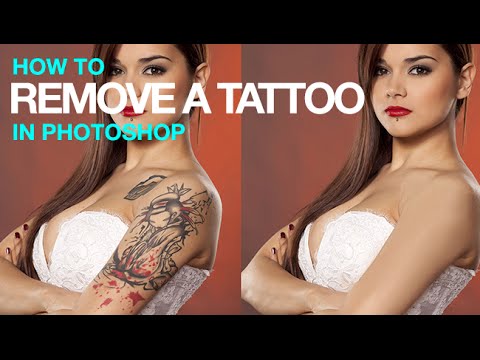
How to Remove a Tattoo in Photoshop
ChannelPHLEARNChapters
Description from the creator
▶ Download the practice files for this tutorial (free with a PHLEARN account): phlearn.com/tutorial/remove-a-tattoo-in-photosh…
Learn how to remove a tattoo in Photoshop, from the rough removal to rebuilding realistic skin texture so the area doesn't look artificially smooth.
This tutorial covers a rough removal with the Spot Healing Brush set to Content Aware, smoothing out any remaining marks, then rebuilding skin texture from scratch using Add Noise, a blur, and an emboss filter so the retouched area matches the surrounding skin.
CHAPTERS
00:00 Overview: rough removal, then rebuilding texture
01:05 Rough removal with the Spot Healing Brush
07:31 Smoothing and cleaning up remaining marks
09:19 Rebuilding skin texture with Add Noise
11:14 Blurring the noise for a realistic grain
12:09 Masking the texture in with opacity control
THE STEPS
1. Create a new layer for your rough removal
2. Set the Spot Healing Brush to Content Aware with Sample All Layers on
3. Paint over the tattoo to remove the bulk of it
4. Use the Brush tool to sample and paint over any remaining marks
5. Add a new layer filled with 50% gray
6. Go to Filter, then Noise, then Add Noise
7. Apply a slight Gaussian Blur, then an Emboss filter, to shape the grain
8. Set the layer to Overlay and mask it in with a layer mask
Read PHLEARN's full walkthrough of tattoo removal, then try it yourself: phlearn.com/tutorial/how-to-remove-a-tattoo-in-…
―
PHLEARN PRO: every PRO tutorial, one membership
◦ 200+ in-depth courses and masterclasses on Photoshop, Lightroom and photography
◦ 1,000+ downloadable PSDs, RAW images and sample files to follow along
◦ Presets, Photoshop actions and LUTs included
◦ New PRO tutorials every month, streamed in 4K with captions and chapters
◦ Rated 4.93/5 by 3,900+ students
◦ Cancel anytime, 100% money-back guarantee
▶ phlearn.com/pro
―
Follow PHLEARN
Instagram: instagram.com/phlearn/
Facebook: facebook.com/PHLEARN
Twitter: twitter.com/PHLEARN
#Photoshop #Retouching #SkinTexture
Learn how to remove a tattoo in Photoshop, from the rough removal to rebuilding realistic skin texture so the area doesn't look artificially smooth.
This tutorial covers a rough removal with the Spot Healing Brush set to Content Aware, smoothing out any remaining marks, then rebuilding skin texture from scratch using Add Noise, a blur, and an emboss filter so the retouched area matches the surrounding skin.
CHAPTERS
00:00 Overview: rough removal, then rebuilding texture
01:05 Rough removal with the Spot Healing Brush
07:31 Smoothing and cleaning up remaining marks
09:19 Rebuilding skin texture with Add Noise
11:14 Blurring the noise for a realistic grain
12:09 Masking the texture in with opacity control
THE STEPS
1. Create a new layer for your rough removal
2. Set the Spot Healing Brush to Content Aware with Sample All Layers on
3. Paint over the tattoo to remove the bulk of it
4. Use the Brush tool to sample and paint over any remaining marks
5. Add a new layer filled with 50% gray
6. Go to Filter, then Noise, then Add Noise
7. Apply a slight Gaussian Blur, then an Emboss filter, to shape the grain
8. Set the layer to Overlay and mask it in with a layer mask
Read PHLEARN's full walkthrough of tattoo removal, then try it yourself: phlearn.com/tutorial/how-to-remove-a-tattoo-in-…
―
PHLEARN PRO: every PRO tutorial, one membership
◦ 200+ in-depth courses and masterclasses on Photoshop, Lightroom and photography
◦ 1,000+ downloadable PSDs, RAW images and sample files to follow along
◦ Presets, Photoshop actions and LUTs included
◦ New PRO tutorials every month, streamed in 4K with captions and chapters
◦ Rated 4.93/5 by 3,900+ students
◦ Cancel anytime, 100% money-back guarantee
▶ phlearn.com/pro
―
Follow PHLEARN
Instagram: instagram.com/phlearn/
Facebook: facebook.com/PHLEARN
Twitter: twitter.com/PHLEARN
#Photoshop #Retouching #SkinTexture
About this tutorial
PHLEARN published this 15:29 video tutorial on November 7, 2015. It has been watched 455,628 times on YouTube.
Tags
Share
This tutorial in other languages
- FRComment faire pour supprimer un tatouage dans Photoshop
- ESCómo quitar un tatuaje en Photoshop
- PTComo remover uma tatuagem no Photoshop
- ITCome rimuovere un tatuaggio in Photoshop
- DEWie ein Tattoo in Photoshop entfernen
- NLHoe te verwijderen van een Tattoo in Photoshop
- RUКак удалить татуировку в Photoshop
- PLJak usunąć tatuaż w Photoshopie
- JAPhotoshopでタトゥーを削除する方法
- ARكيفية إزالة الوشم في فوتوشوب
- HIकैसे Photoshop में एक टैटू निकालें
- IDCara Hapus Tato di Photoshop